Page Optimizer Step-by-Step Guide
The Page Optimizer module allows you to analyze specific pages on your website to determine how well they answer user queries and cover relevant topics. It evaluates your content using browser-based AI embeddings (MiniLM) and OpenAI reasoning to provide actionable, step-by-step recommendations for content improvement.
Key Features:
AI Content Analysis: Scrape and analyze page content against your target queries in real-time.
Topical Coverage Scoring: See exactly what percentage of a topic your content covers.
Query Mapping: Evaluate how accurately a specific page answers targeted LLM queries.
Actionable Recommendations: Get specific entities to add, Schema markup suggestions, and priority-based action items.
Step1: Getting Started - The Dashboard #
When you navigate to Page Level Optimization, you will see your Projects Dashboard.
Adding Pages to a Project:
1. Select your desired Project from the grid.
2. Click the Add Pages button in the top right.
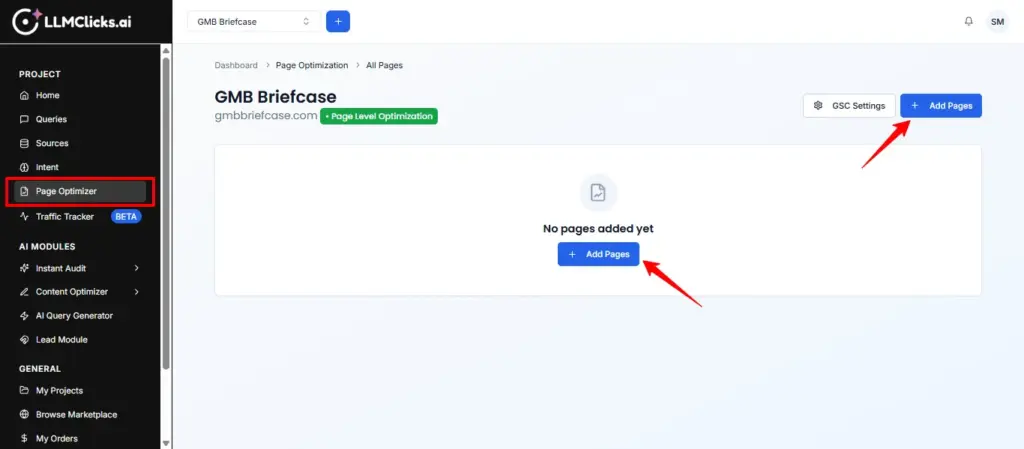
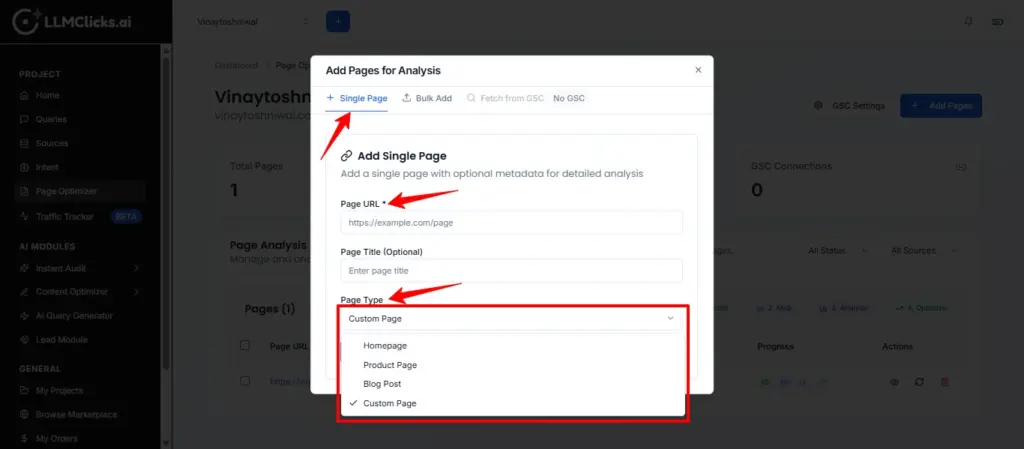
3. Enter Page URL, Page Title (Optional) and select Page Type from the given dropdown.
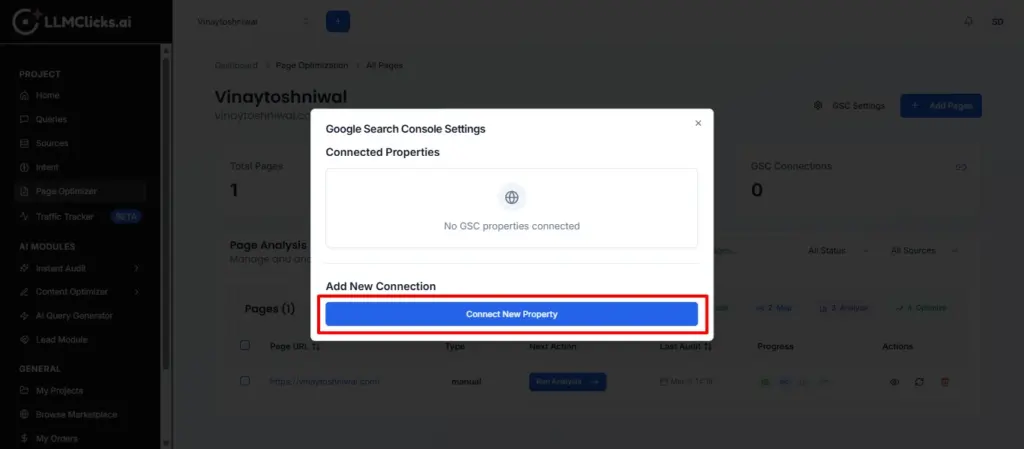
4. You can import pages manually or pull them automatically if you have an active Google Search Console (GSC) connection.
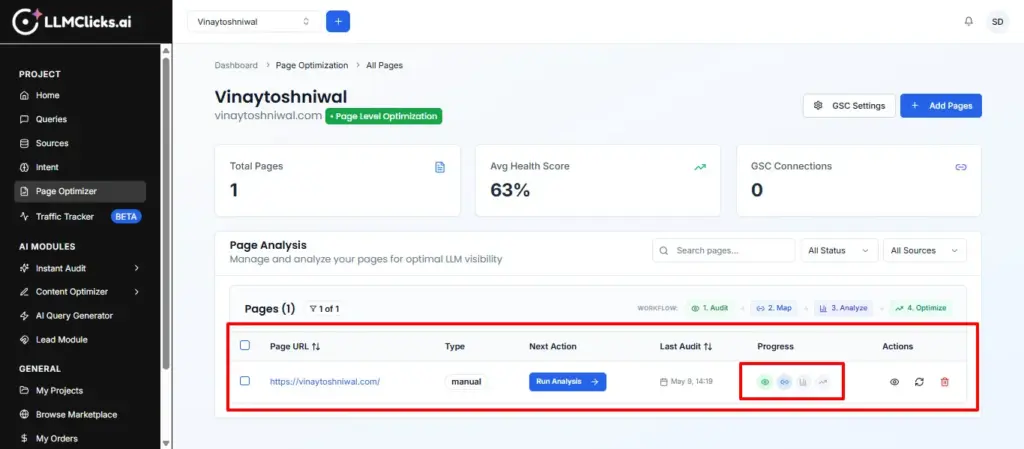
5. Once added, pages will appear in the Data Table with their current optimization progress.
When you are done with adding in the Data Table in the Page Optimization section and Click the Run Audit (or Run New Audit) button, the system triggers a comprehensive on-page SEO analysis.
Here is what happens during and after the audit generation:
Audit Initiation: The platform sends a request to process the page and displays a notification indicating that the audit has started. The page will automatically refresh within a few seconds to display the results.
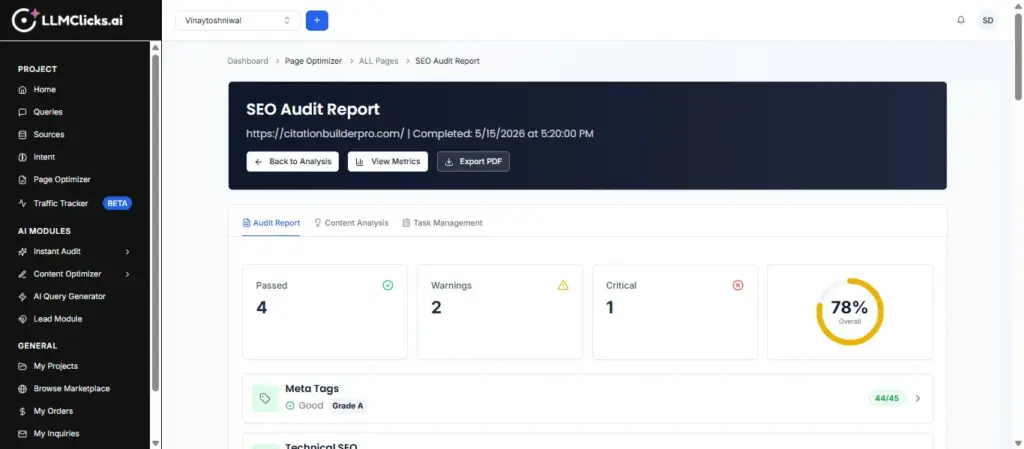
Scoring & Breakdown: The generated Audit Report calculates an overall SEO score and categorizes the analysis into specific sections, including Meta Tags, Technical SEO, Content & Heading Structure, Images, Structured Data, Links, AI Optimization, Trust Badges, Content Freshness, Sitemap, and Orphan Page.
Detailed Checks: Each section breaks down its respective elements, scoring them individually and providing visual feedback (e.g., green for good, yellow for warning, red for critical).
Expert Analysis & Next Steps: The audit concludes with an Expert Analysis section that categorizes findings into Critical Issues (requiring immediate attention), Optimizations (areas for improvement), and Strong Areas (what you are doing right). It provides actionable recommendations for each
Exporting: You can easily download the entire audit findings by clicking the Export PDF button for offline viewing or reporting to clients.
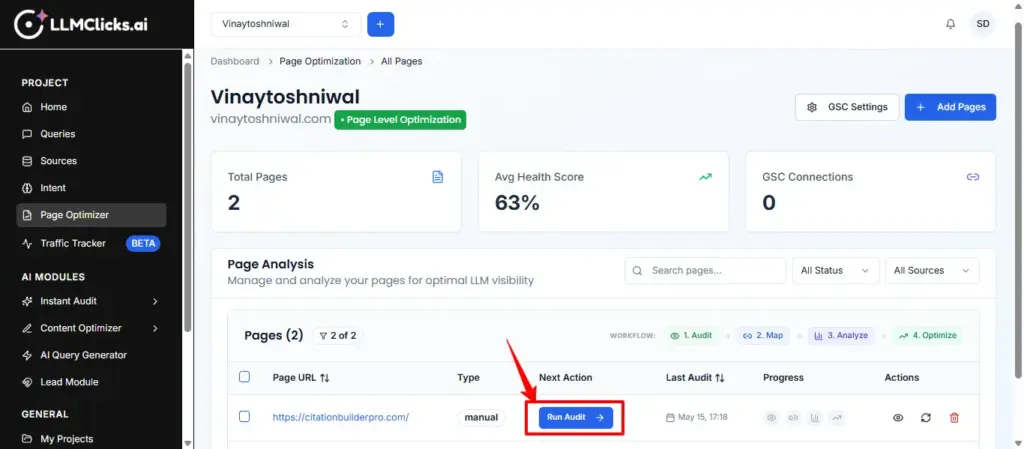
After the “Running an Audit workflow.” Here is a summary of the “Mapped Keyword Process”
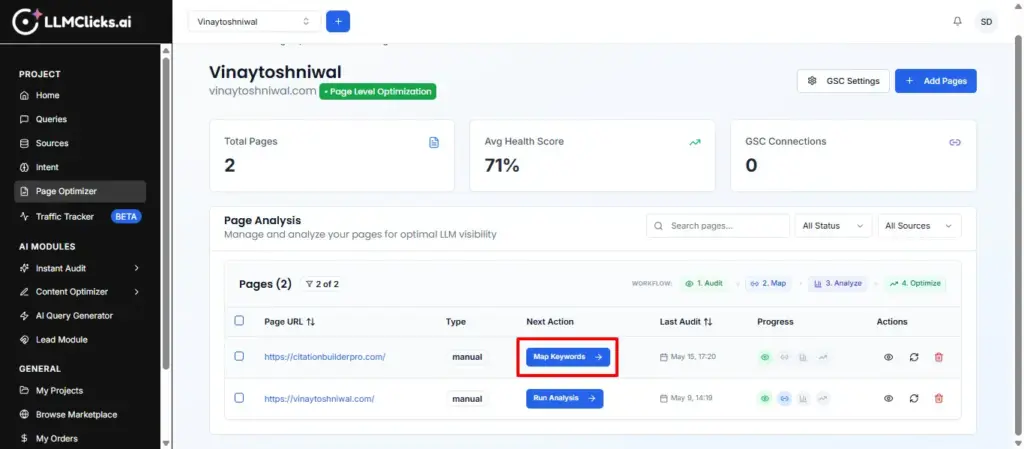
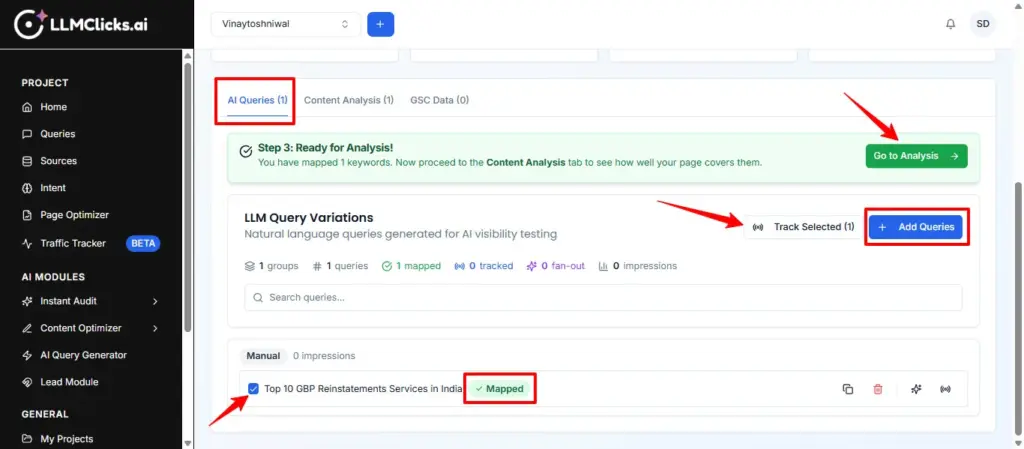
Map for Analysis: Review the AI Queries and click “Map Here” on the specific queries you want to optimize your content for. (Only mapped queries are included in the subsequent semantic analysis).
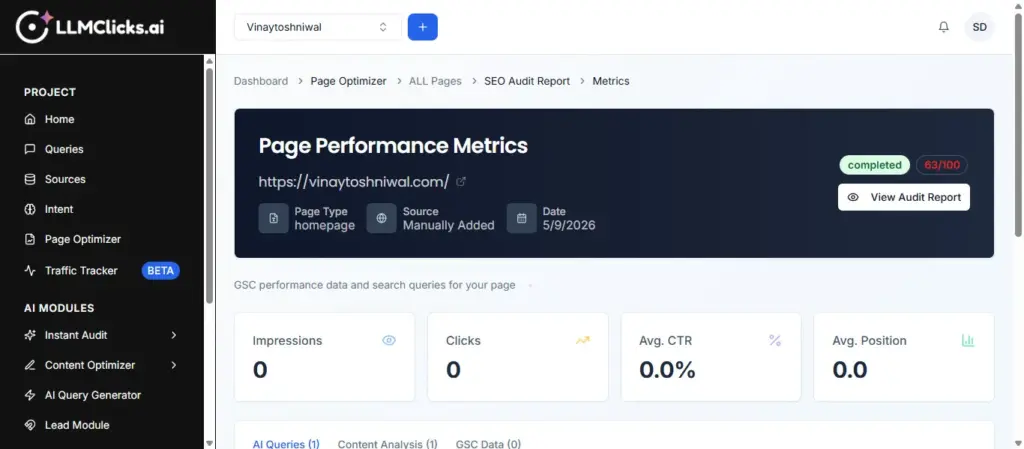
Click on View Audit Report.
Tracking Progress:
Each page goes through four distinct stages:
Audited: The technical SEO audit has been completed.
Mapped: You have assigned specific target AI queries to this page.
Analyzed: The content has been scraped and analyzed against the mapped queries.
Optimized: The page has reached an 80%+ topical coverage score.
Step 2: Running a Content Analysis #
To analyze how well your content performs:
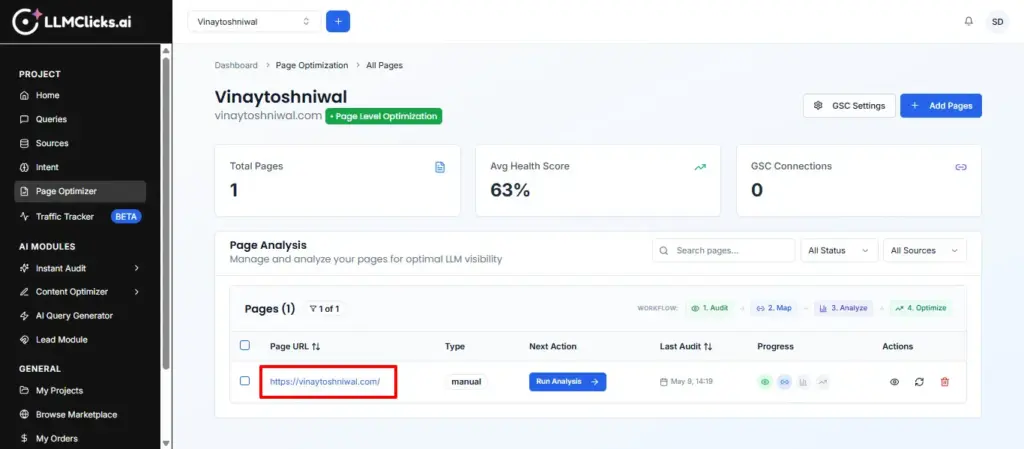
1.Click and open the page URL.
2. Ensure you have Mapped Queries attached to the page. (Go to the “AI Queries” tab and map target keywords to the page).
3.Click View Page to open the specific page’s metrics dashboard.
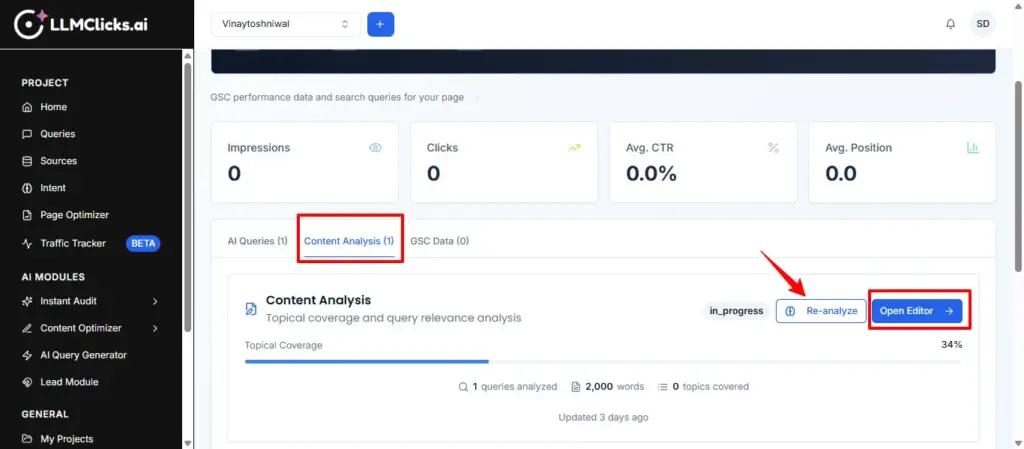
4. Locate the Content Analysis card and click “Run Analysis”.
Note: The analysis process will scrape your current live page content, generate AI embeddings, and score your content’s relevance against your mapped queries.
Step 3: Understanding Your Results #
Once the analysis is complete, your results are divided into three main tabs: Overview, Section Analysis, and Recommendations.
The Overview Tab
The Overview gives you a high-level look at your page’s performance:
Average Score: The overall relevance score across all mapped queries.
Topical Coverage: A percentage representing how comprehensively your content covers the target topic.
Query Distribution: A breakdown of how your queries scored (Excellent, Strong, Moderate, Weak, or Poor).
The Content Analysis Tab
This tab breaks down your page content into individual sections (or chunks). It shows you:
* Which sections of text are matching with which queries.
* The relevance score for each specific section.
This helps you identify if a topic is buried too far down the page or if a section needs to be expanded.
Re-analyzing Content
If you have updated your content and want to check your new score, click “Re-analyze”. This will re-scrape the live page, generate new embeddings, and recalculate similarity scores.
Priority Levels
🔴 Critical Priority (< 40% Score):Immediate action required. The page fails to answer this query.
🟠 High Priority (40% – 60% Score): Significant improvements needed to be visible to LLMs.
🟡 Medium Priority (60% – 75% Score): Minor optimization and expansion opportunities.
🟢 Good Performance (> 75% Score): Excellent coverage. No action needed.
Actionable Insights inside Recommendations
For every underperforming query, LLMClicks provides specific, actionable steps:
- Primary Recommendation: A high-level summary of what needs to change.
- Missing Entities: Specific keywords, concepts, or entities that LLMs expect to see for this query, but are missing from your text.
- Wikipedia References: Links to authoritative topics you should reference to build topical trust.
- Schema Markup Required: If a query requires specific structured data (like `FAQPage`, `Product`, or `HowTo`), the tool will tell you exactly what Schema to implement.
5. New Page Suggestions: If a query scores very poorly because it doesn’t fit the page’s intent, the tool will recommend creating a brand new URL, complete with a suggested URL slug, estimated word count, and a content outline.
Step 4: The Content Editor #
Once you know what needs to be fixed, click the “Open Editor” button on the Content Analysis card.
This will launch the Content Optimizer, a dedicated writing environment where you can update your text, add the missing entities, and see your topical coverage score improve in real-time as you write.
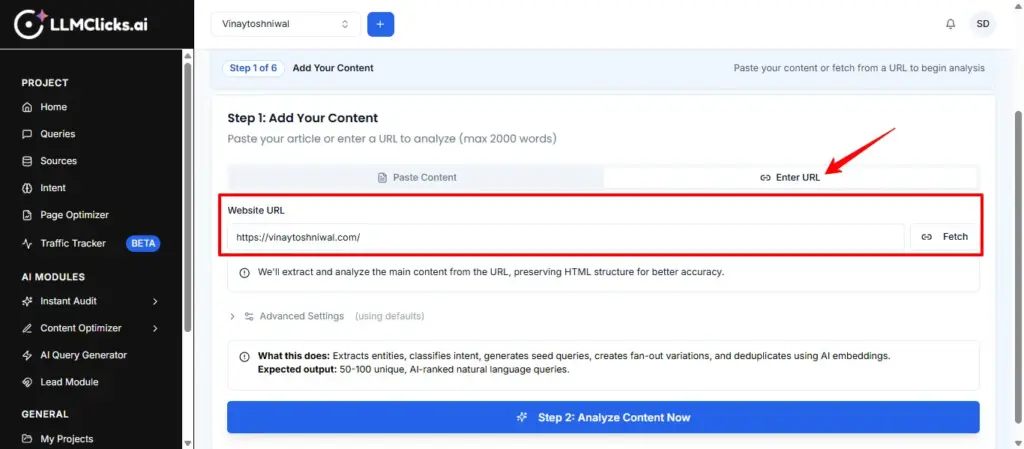
1.Content (Scope)
Define the baseline content you want to analyze and optimize.
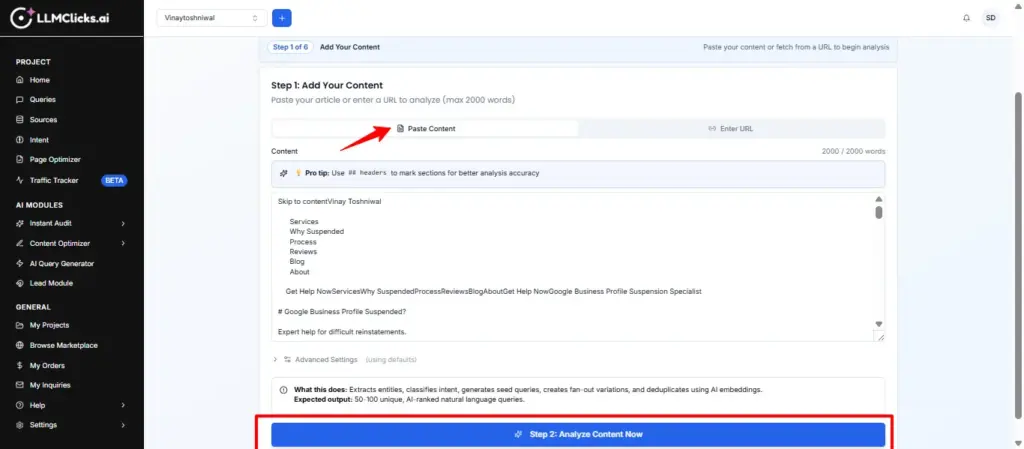
Paste your existing text or fetch it directly from a live URL. The system will detect the format (Markdown, HTML, or Plain Text) and prepare it for deep analysis.
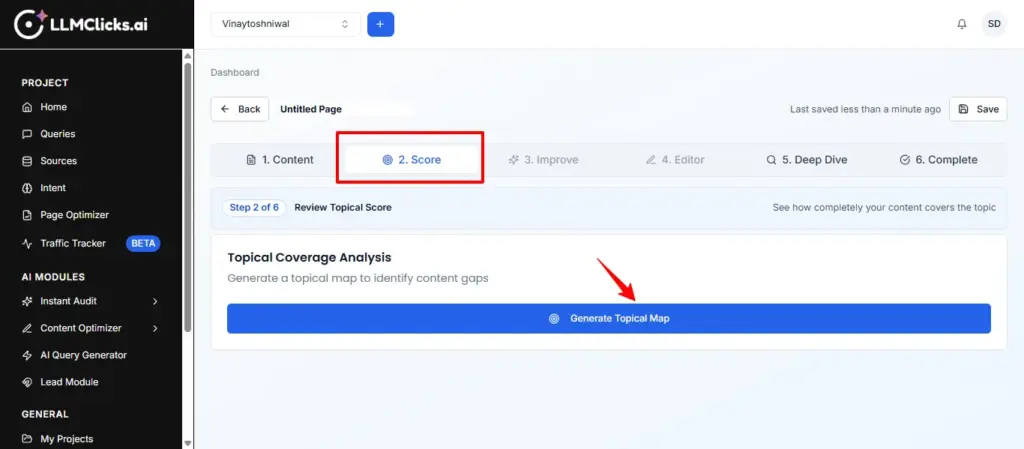
2.Score
Evaluate how comprehensively your content covers the intended subject.
Click “Generate Topical Map” to analyze the content against the main topic.
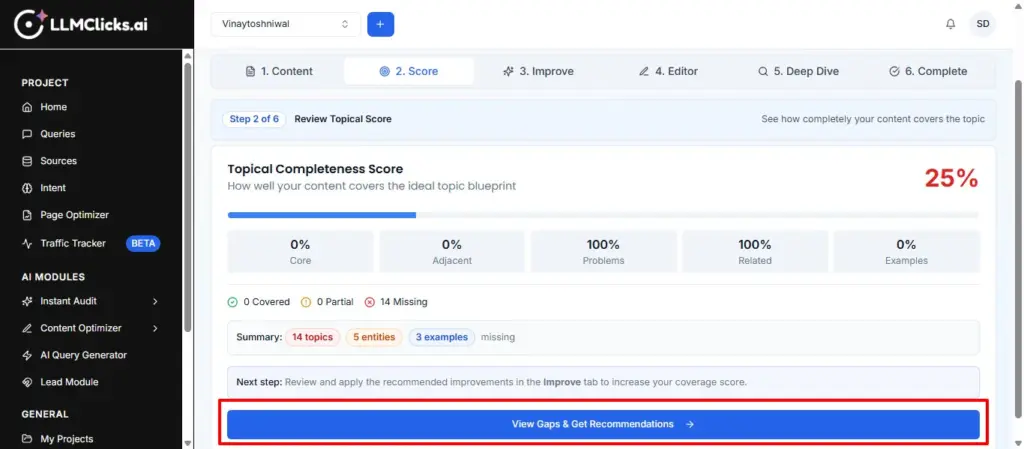
This step calculates your Topical Coverage Score, indicating if your content effectively addresses the core topic, adjacent topics, and problem-solution angles.
3.Improve
Review specific, actionable recommendations to fill content gaps.
This tab highlights missing elements such as unaddressed topics, key entities, frequently asked questions (FAQs), examples, and workflows. You can review priority actions needed to increase your topical completeness.
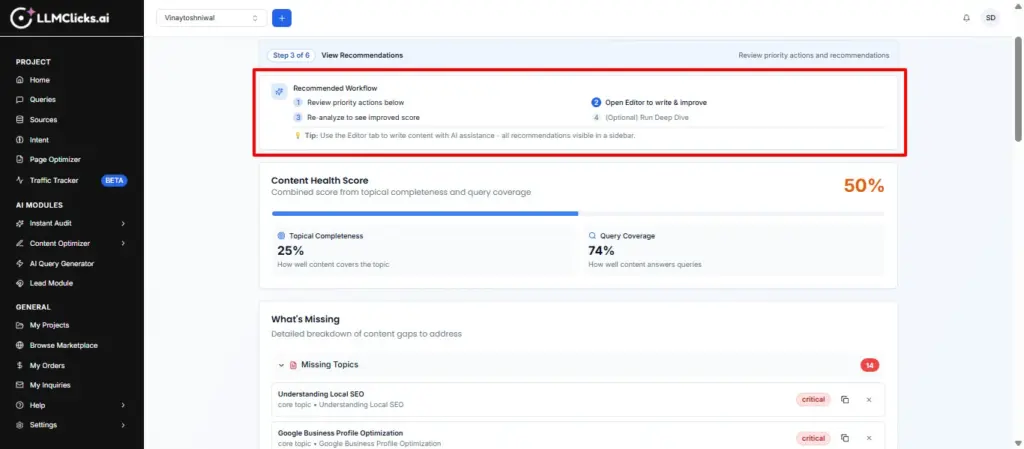
Click on Open Editor Button.
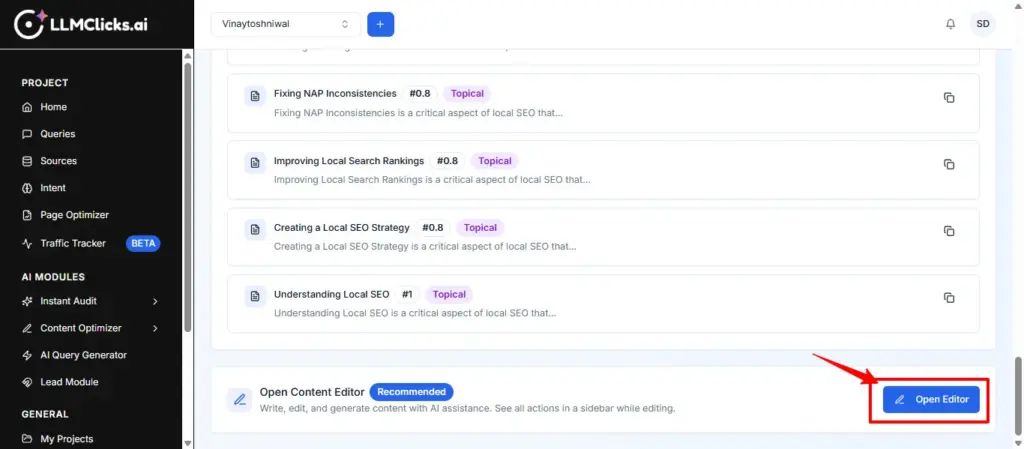
4. Editor
Interactively refine and expand your content with AI assistance.
You can select your preferred AI Provider (ChatGPT, Claude, Gemini, DeepSeek, etc.) and model.
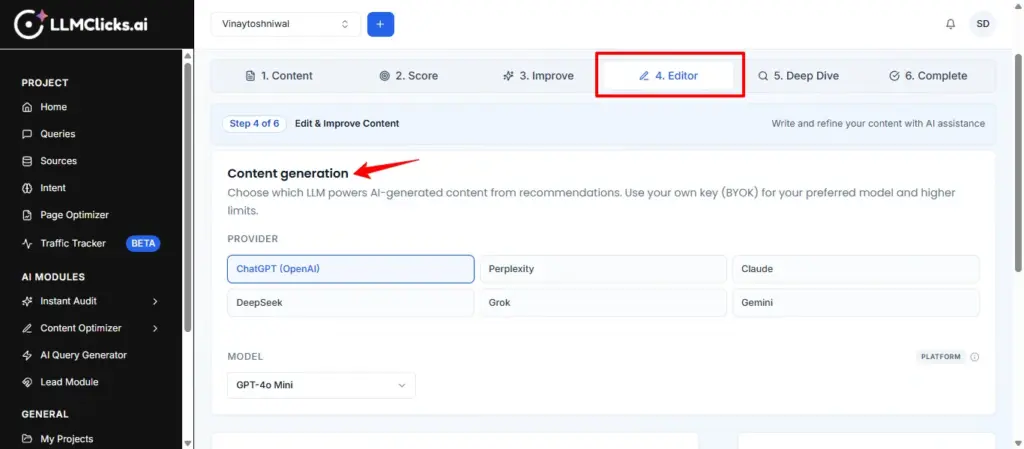
Use the rich text editor to make manual adjustments or leverage AI to generate new sections based on the recommendations from the “Improve” tab. Using your own API Key (BYOK) allows you to bypass platform limits.
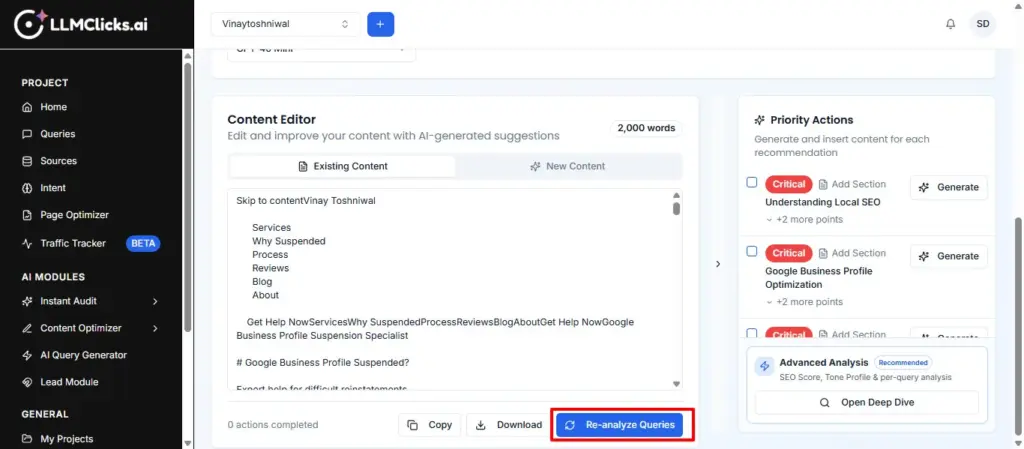
5.Deep Dive
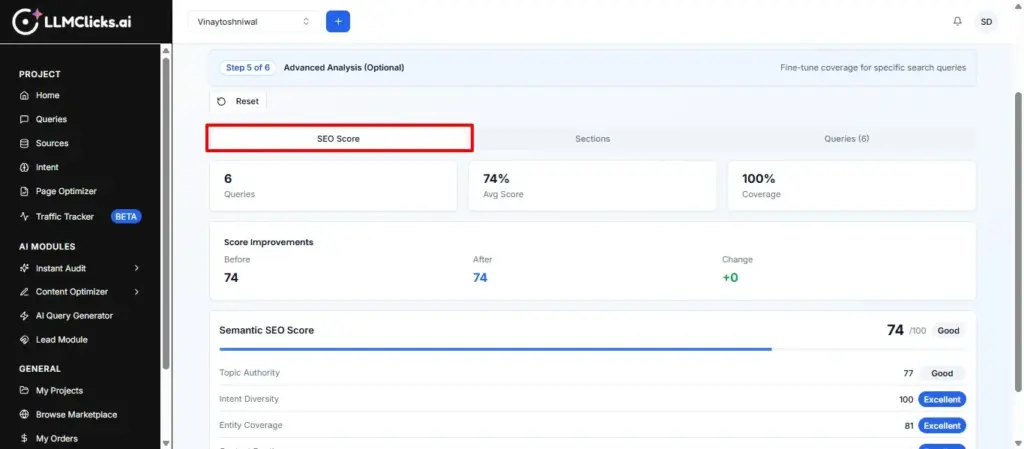
Perform an advanced semantic analysis against specific search queries.
After running a Query Analysis, this section evaluates how well your content matches user intent for specific target keywords (the ones you previously “Mapped”). It provides granular semantic scores, helping you fine-tune the content to rank better for precise search terms.
6. Complete
Purpose: Finalize, export, and prepare the content for publication.
Details: Once you are satisfied with the optimizations, this final dashboard provides a comprehensive overview of your achievements:
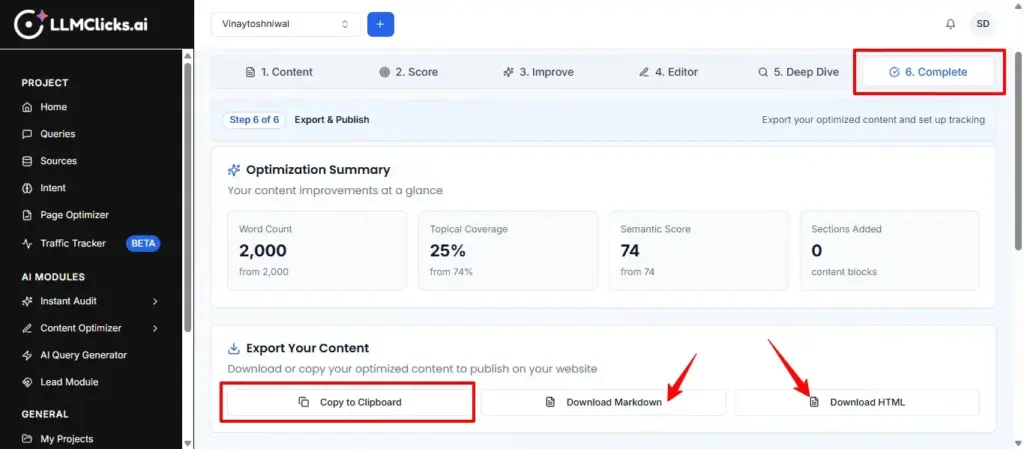
Optimization Summary: A quick-glance view comparing your initial and final stats. It displays Word Count, Topical Coverage percentage, Semantic Score (with net increase), and the number of Sections Added (content blocks).
Export Your Content: Download your fully optimized draft. You have three easy options: Copy to Clipboard, Download Markdown, or Download HTML.
Next Steps: A checklist to ensure your newly published content is correctly monitored (e.g., verifying implementation on your website and setting up rank tracking).